Tree structure of product categories
Assuming you are on the Eomm back-end system, locate "Categories" option under "Settings" menu tab. The following screen contents should look as below.
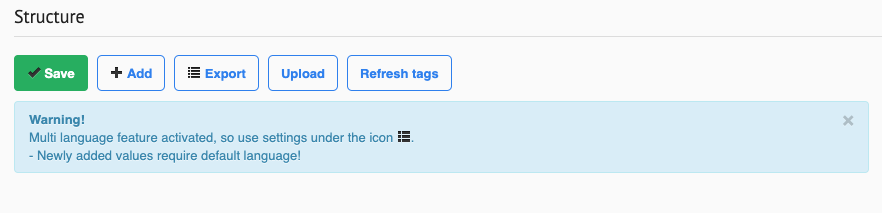
The offered options are to ADD, EXPORT, UPLOAD and REFRESH categories.
Categories are formed as a tree structure, meaning after creation of main category, there is an option to create its sub categories. Example :

To create a main category, click "Add" button. Event spawns an empty input field. After naming the category and selecting "Articles" on a dropdown list , click "Save" button to confirm the creation.
Alongside main category there are spawned "+" symbol, which adds a subcategory to corresponding category, "Edit" symbol, which allows to edit category parameters (explanation in heading below) and "Trash" symbol, which deletes the category or subcategory.

Subcategories number is not limited, although it affects category display on a live page.
Existing categories and subcategories can be modified by clicking "Edit" symbol.
Once it is clicked, it opens up an editing page of a selected category. It offers editing the title of a category/subcategory, its routing name (in URL) and tags. Make sure to always add a slash symbol "/" at the start of input field for routing name. Once everything is set up, confirm selection by saving.
Categories and subcategories can also be moved by a simple drag and drop method. For instance let's move "Sub 2" ahead of "Sub 1". Click on "Sub 2" and drag it above "Sub 1". Confirm order by saving.
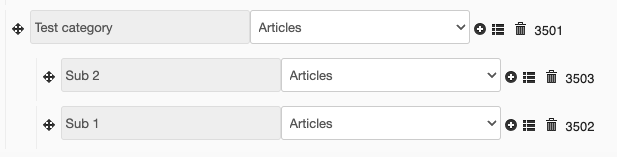
Assuming at least one category exists, it contains a "Trash" symbol, which deletes the corresponding category. After clicking the symbol, a prompt is presented to user, to confirm the deletion of category.


On the home page of "Categories" menu option, there are EXPORT and UPLOAD buttons. EXPORT button allows to export the current category tree as a .xlsx file. On the other hand, UPLOAD button uploads the .xlsx file to create a tree based on data it contains. After uploading file confirm the category tree by saving.