Product collections
Assuming you are on the Eomm back-end system, locate "Landing pages - collections" option under "Settings" menu tab. The following screen contents should look as below.
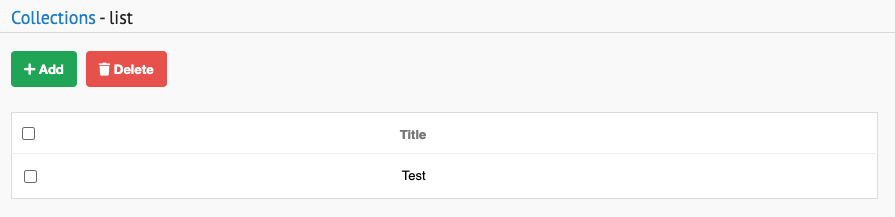
The offered option are to ADD and DELETE collections.
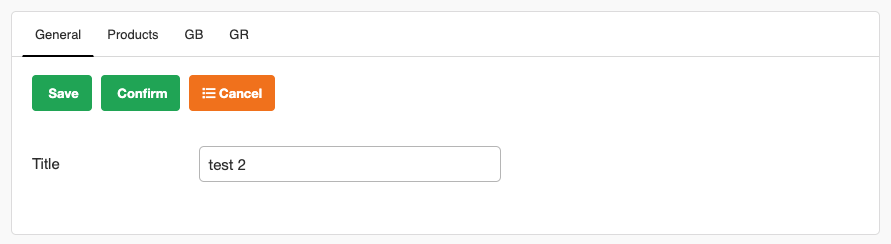
Collections are being added by clicking "Add" button. It is required to input the collection title. Confirm selection by clicking "Confirm".
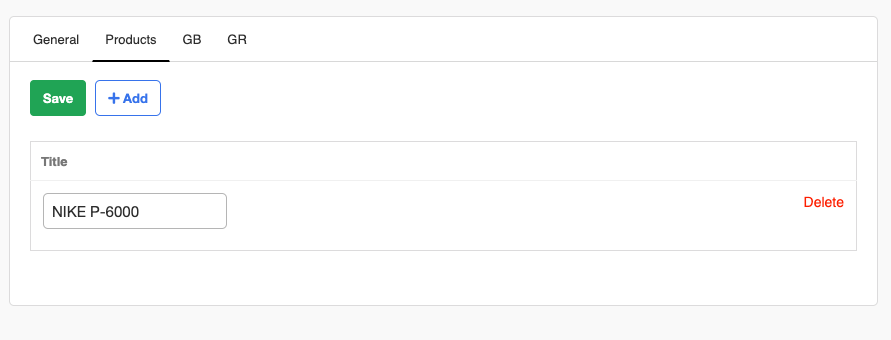
Under tab "Products" add all the products to be shown on the content generated later. By clicking "Add" button, event spawns empty table entry, asking for title. Input field is autocomplete, meaning, to add "Nike" product, type only "N" or "Ni" to filter it out. Table entries may aswell be deleted by clicking "Delete" text at the far right of the table.
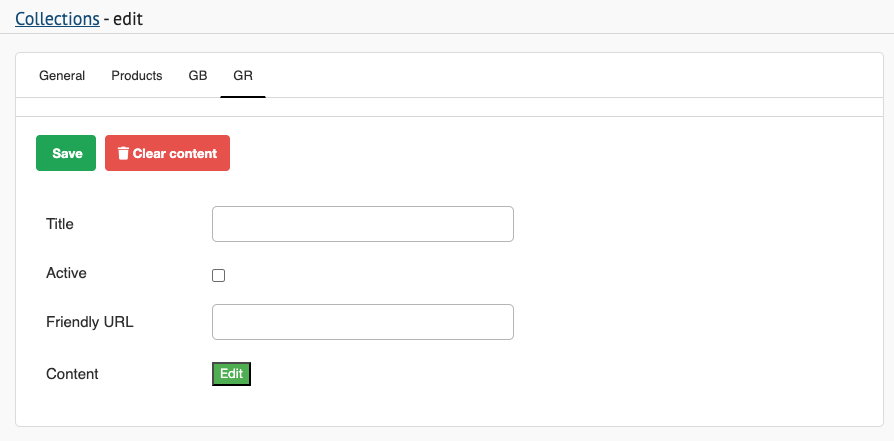
To display product collection in live content, move to chosen language initial tab, either "GB" or "GR". Provide "Title" display name, check "Active" checkbox to display content on live page, provide "Friendly URL" routing name for content access on live site. Edit content with grapeJS editor.
To show product collections with grapeJS editor, drag and drop "Carousel products" element into page.

On the home page of "Landing page - collections" menu option, there is DELETE button. before the button is clicked, check the checkbox of collection/s to be deleted. Event removes selections from table.