Landing pages
Assuming you are on the Eomm back-end system, locate "Landing pages" option under "Content" menu tab. The following screen contents should look as below.
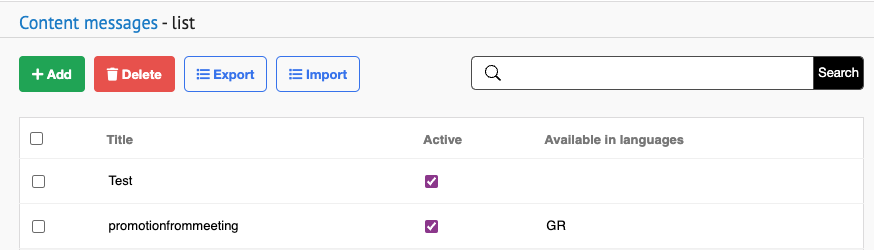
The offered option are to ADD, DELETE, EXPORT and IMPORT landing pages.
Landing page filtering is included with search bar, which filters results by "Title".
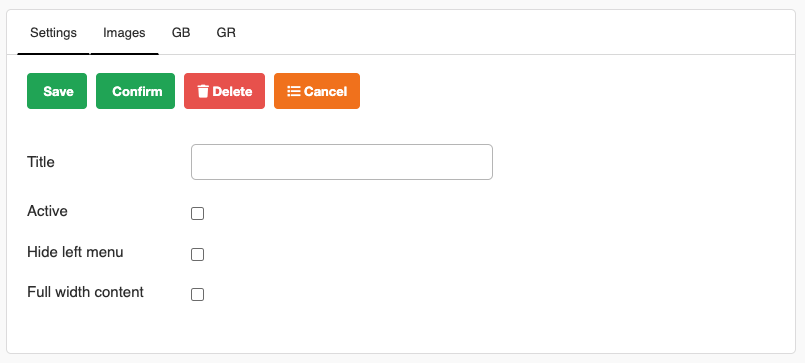
Landing pages are being added by clicking "Add" button. It is required to input the landing page title. There are also 3 checkboxes :
- Active : makes the landing page visible to users.
- Hide left menu : hides the other pages under same category.
- Full width content : scales the page content to a full visible browser window.
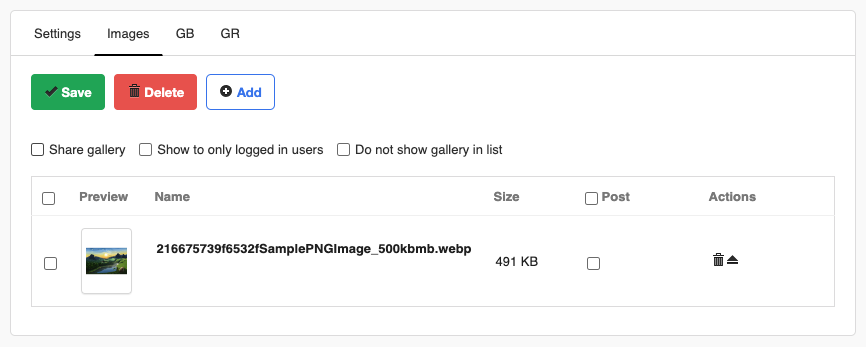
On the next tab "Images", add an image by clicking "Add" button. It prompts the user to upload an image from computer. Confirm the upload by clicking "Save" button. If the selection is not correct, simply delete it by checking the checkbox before the image in table and click "Delete" button.
Now follows the actual content landing page contains. There are two language options tabs, "GB" and "GR" each representing their respective site language. Let's stick to "GR" for example. Either the content is provided via integrated HTML editor or grapeJS built-in editor by clicking "Edit" button. After providing content and title, make sure to check the "Publish" checkbox otherwise page is not going to be visible. Confirm the changes by saving.
On the home page of "Landing page" menu option, there is DELETE button. before the button is clicked, check the checkbox of page/s to be deleted. Event removes selections from table.
On the home page of "Landing page" menu option, there are EXPORT and IMPORT buttons. EXPORT button allows to export the current landing page table as a .xlsx file. On the other hand, IMPORT button uploads the .xlsx file to create a table based on data it contains. After uploading file confirm it by saving.