Content creation
Assuming you are on the Eomm back-end system, locate "Content list" menu tab. There are several pre-existing options like footer, other, size guide,... .The following screen contents should look as below.
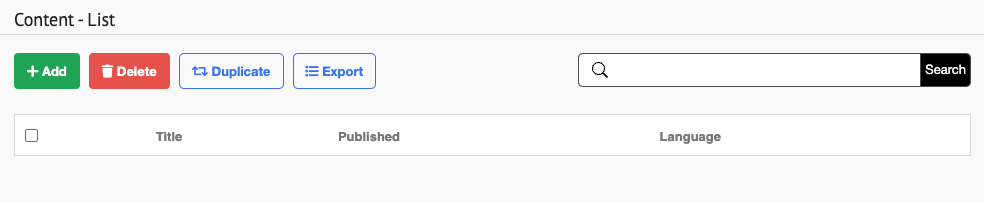
The offered options are to ADD, DELETE, DUPLICATE and EXPORT contents.
Contents are being added as table entries in content list. To create a content, click "Add" button. Event redirects to a editing page, where the title is entered. After entered title, save the selection by clicking "Confirm" button.

There are multiple editing tabs such as "Settings", "Images", "Attachments" and language initials.
Settings tab allows the publishing of editors, date time and redirection to custom route URL alongside the actual content.
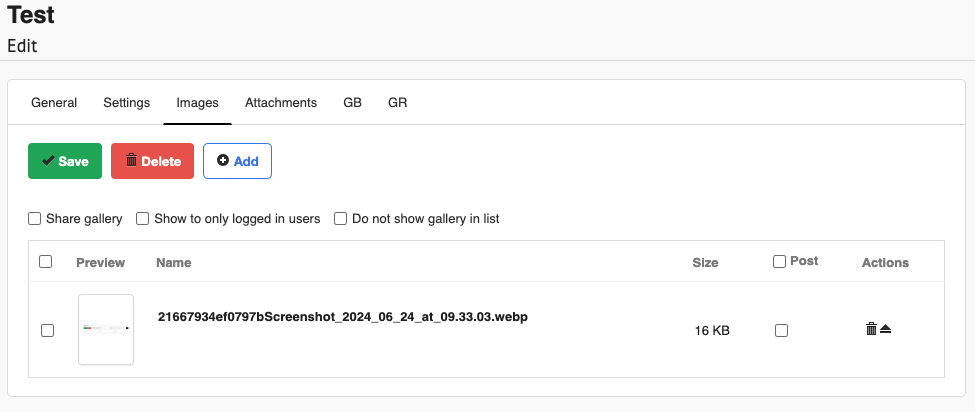
Images tab allows the upload of images that will be used in forming the actual content itself with HTML editor. Image is uploaded to current content table entry and it is unique to itself.
Attachment tab allows the upload of attachments that will be used in forming the actual content itself with HTML editor. Attachment is uploaded to current content table entry and it is unique to itself.
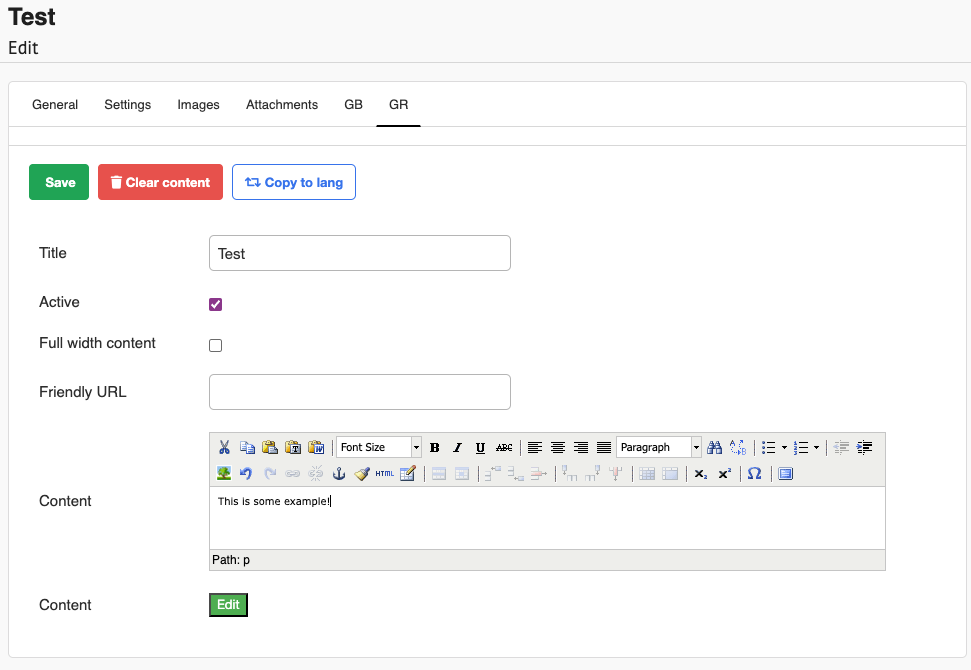
Language initials tabs allows the creation of the actual content shown on the live site. Let's assume the page is in Greek language. By clicking "GR", HTML editor opens up. There is also an option to create content in GrapeJS editor. By previously adding images and attachments to a content, HTML editor offers insertion of these uploads in actual content.
After inserting the content, make sure to name the "Title" as it serves as content title. Tick the "Active" checkbox to make content go live on site and "Full width content" checkbox to stretch the content on whole page window.
On the home page of "Content list" menu option, there is DELETE button. before the button is clicked, check the checkbox of contents to be deleted. Event removes selections from table.
On the home page of "Content list" menu option, there is DUPLICATE button. before the button is clicked, check the checkbox of contents to be duplicated. Event duplicates selections from table and adds new entries.
On the home page of "Content list" menu option, there is EXPORT button. before the button is clicked, check the checkbox of content to be exported. Event exports the selected content as a .xlsx file.